
Download Fb88 App Installation on Android and iOS Troubleshooting Common Issues 2026
A few minutes of proper setup, and the Fb88 app on Android and iOS runs smoothly — no more hunting for links or waiting for slow page loads.
It takes just a few minutes to complete setup — that's the actual time users need to get the Fb88 app on their phone and ready to access. Compared to using a browser and constantly hunting for new links, the app delivers a noticeable difference in response speed and stability. This article walks through each installation step on Android and iOS, plus how to handle when issues pop up — enough for you to do it all yourself from start to finish without needing to ask for help.
Using the app instead of a browser: what's the difference?
When accessing Fb88 through a browser, slow loading or needing to switch links happens fairly often, especially during peak hours. The app solves this in two ways: the interface is optimized specifically for phone screens so navigation is cleaner, and the connection is more stable since it doesn't rely on browser links.
Another practical advantage is tracking multiple matches at once — the app displays cleanly without the clutter of opening multiple tabs in a browser. Response speed when jumping into live odds is nearly lag-free, which matters if you follow live betting closely. Plus, app notifications keep you from missing promotions or important odds movements — something a browser can't do.
Guide to Installing Fb88 App on Android
Android doesn't allow APK file installation from outside Google Play by default, so the first step is to enable permission for third-party installations. Here's the order:
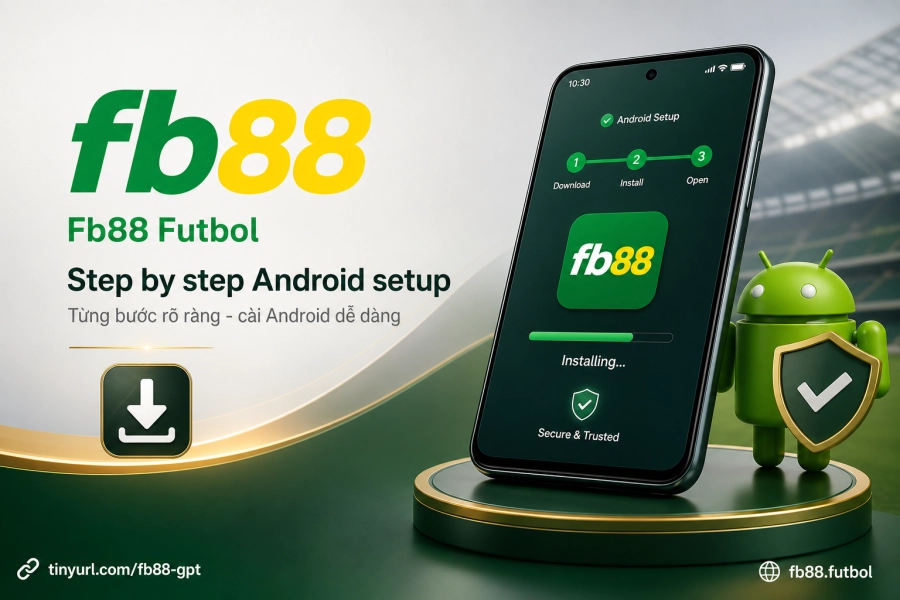
- Visit the Fb88 link on your phone's browser to find the Android app download section.
- Tap to download the APK file to your device — make sure your connection is stable to avoid incomplete downloads.
- Go to Settings > Apps > Install unknown apps, and enable permission for the browser or file manager you're using.
- Open the APK file you just downloaded, tap Install, and wait for your device to process it.
- Once installation is complete, open the app and log in with your existing account.
The entire process usually takes less than five minutes if your connection is good and you know where to enable permission on your device. Note: each time Fb88 releases a new version, you'll download the new APK file again — the app doesn't auto-update like on Google Play.
Guide to Installing Fb88 App on iOS (iPhone)
iOS requires installing apps outside the App Store through Safari — you can't use Chrome or other browsers. This is the biggest difference from Android, and it's also why many people fail to install simply by using the wrong browser.
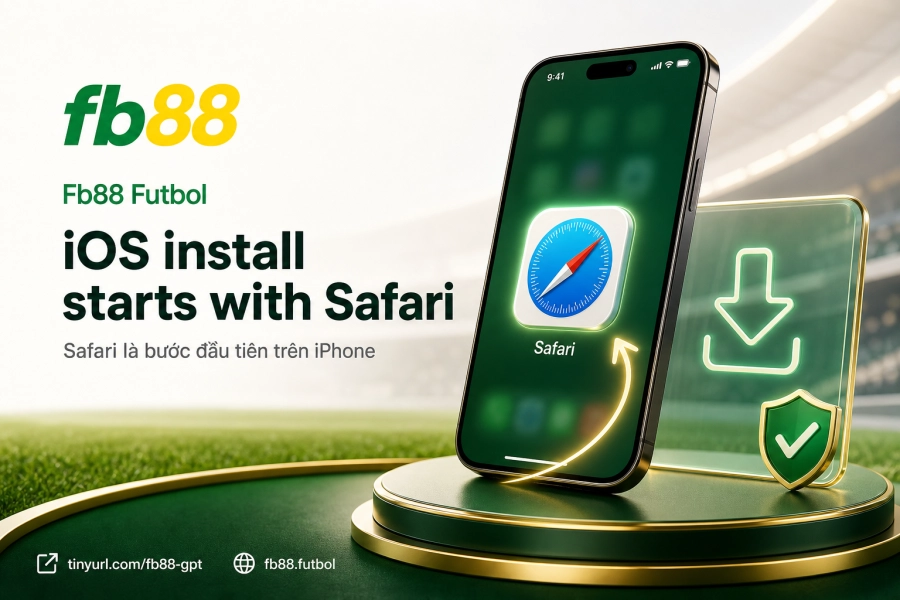
Here's the order on iPhone:
- Open Safari, visit the Fb88 page, and select the iOS app download section.
- Choose the version that matches your iOS, tap Install when the dialog appears.
- Go to Settings > General > VPN & Device Management.
- Find the Fb88 app name in the list, tap it, then select Trust.
- Return to the home screen, open the app, and log in.
The "Trust app" confirmation step is mandatory on iOS — if you skip it, the app won't open even after installation. Some newer iPhone models may show this menu in a slightly different location depending on iOS version, but it's basically still in General Settings.
Common Installation Issues and How to Fix Them
While the process isn't complicated, there are still a few common stumbling blocks. Below are the three most common situations with specific solutions.
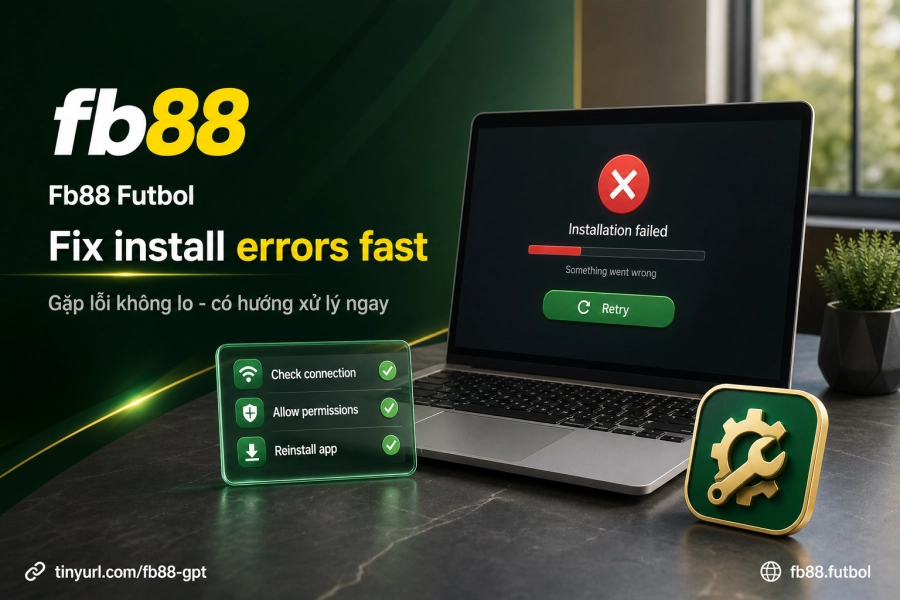
Can't download the installation file
The most common cause is weak connection or the download link being blocked at that moment. Try switching from mobile data to Wi-Fi or vice versa to see if it improves. If the link still won't load, enable a VPN and try again — this usually solves regional blocking issues.
Downloaded but can't install
On Android, this error is almost certainly because you haven't enabled permission to install apps from unknown sources — double-check the permissions section in your device Settings. On iPhone, the usual cause is skipping the "Trust" confirmation step in Device Management, or you completed that step but used a different browser than Safari so the app didn't register.
App crashes or runs slowly after installation
If the app keeps closing or responds slowly after some use, chances are the installed version is outdated or the downloaded file is corrupted. Uninstall the current app, download the APK again (Android) or reinstall via Safari (iOS) with the latest version — this is the quickest fix. After reinstalling, if the app runs smoothly, the problem was with the old file, not your device.
After Installation — Next Steps to Take
Once the app is running smoothly, check a few things to avoid issues later:
- Enable notifications for the app so you get odds updates and promotions on time.
- Log in once and enable login memory if only one person uses your device — saves you from typing your password every time you open the app.
- If you need to Deposit into fb88, the app supports all the same domestic payment channels as the web version.
- The Withdrawal process at fb88 works completely within the app too — no need to open a browser.
Fb88 has been operating since 2016, licensed by PAGCOR Philippines, and secures connections with 128-bit SSL — your account information and transactions are processed on verified infrastructure. If you want to learn more about data protection policies, the Fb88 security page has full details.